
Schedule Airtime, Data & Bill Payments
Schedule airtime, data, electricity and cable TV payments for yourself or loved ones. Choose when each payment should run and manage your schedules from SnappyPay.
Download SnappyPay to set your first schedule.
Prefer using the web? Create a SnappyPay Account on Web
What is Scheduled Payments?
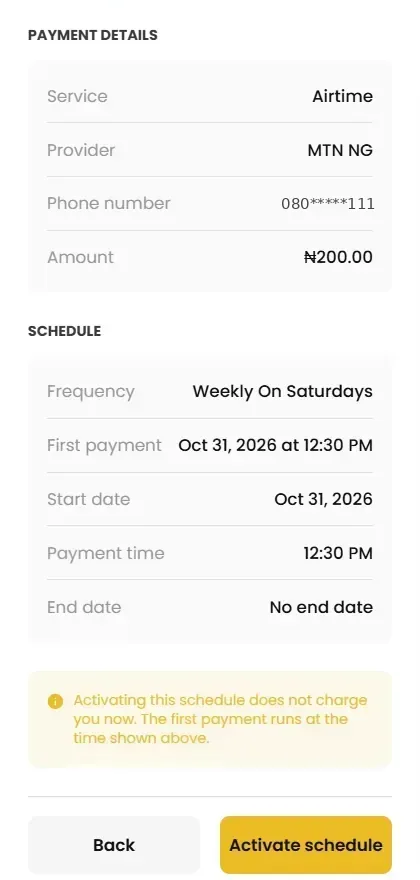
SnappyPay Scheduled Payments is a feature in the SnappyPay app that lets users in Nigeria schedule airtime, data, electricity and cable TV payments to run automatically on a date and time they choose.
Set a one-time payment for a future date, or choose how often it should repeat. It works for your own number, meter or decoder, and for those of family and friends.
Each payment comes from your SnappyPay wallet when it runs, so top up your wallet before the due date.
What can you schedule?
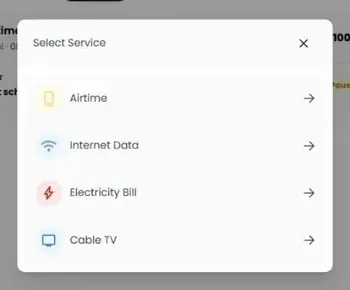
Four everyday payments, set up once and run at the time you choose.
Airtime
Enter a Nigerian phone number on networks such as MTN or Airtel, choose the amount, then set when the top-up should run.
Buy airtime nowInternet Data
Pick a data bundle for your number or a loved one's, to be bought on the date you select.
Buy data nowElectricity
Enter and verify your meter number, choose your electricity company, such as Ikeja Electric, and your prepaid or postpaid meter type, then schedule the payment.
Pay electricity nowCable TV
Enter your DStv smart-card number, select a package shown in the app and set the renewal date.
Pay for TV nowChoose your schedule
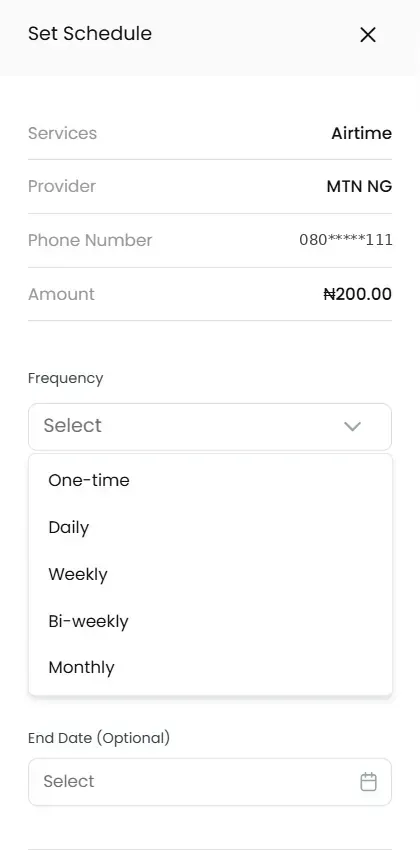
Pick how often each payment should run.
One-time
A single payment on a selected date and time.
Daily
Repeats every day at your chosen time.
Weekly
Repeats on a chosen day of the week.
Bi-weekly
Repeats every two weeks.
Monthly
Repeats once each month.
Recurring schedules have an optional end date. You choose the payment time during setup.
Set it up in four steps
Everything happens in the SnappyPay app or on the web.
Choose a service
Airtime, data, electricity or cable TV.
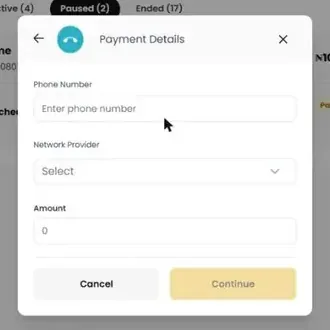
Enter the details
Add the phone number, meter number or smart-card number.
Set date, time and frequency
Choose one-time or a repeat, plus an optional end date.
Review and activate
Check the summary, then activate your schedule.
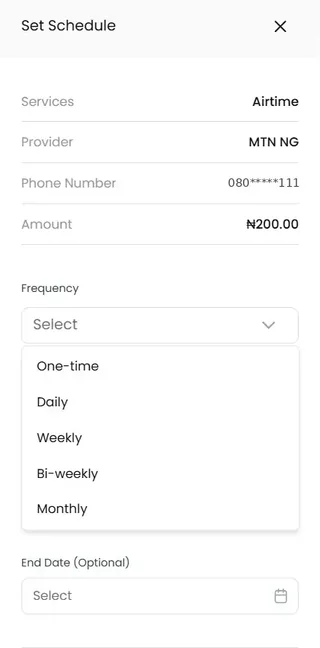
Activating a schedule does not debit your wallet straight away. Each payment is set to run at its selected time, using your SnappyPay wallet.
Made for everyday life
Plan the payments you make again and again, for yourself or the people you look after.
Airtime for parents
Schedule airtime to a parent's number so their line stays topped up on the days you choose.
Data for children or students
Set a data bundle for a child or student on a weekly or monthly schedule.
Household electricity
Plan electricity payments for your home meter around your budget dates.
Cable TV subscriptions
Schedule your cable TV payment ahead of your renewal date.
Manage your schedules
See every schedule in one place, filtered by All, Active, Paused and Ended.
- View upcoming schedules
- Check each schedule's status
- Pause a schedule
- Resume a paused schedule
- Cancel a schedule
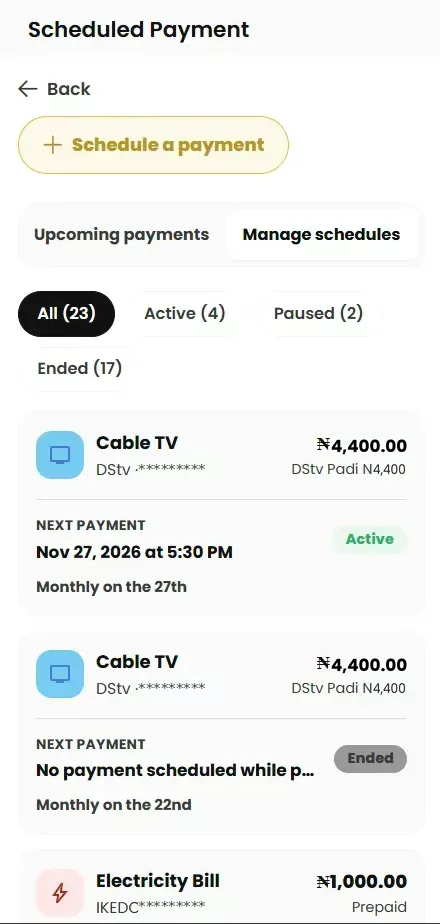
Important payment information
Fund your wallet first
Scheduled payments use your SnappyPay wallet. Keep it funded with enough balance before each scheduled date.
Time-based, not balance-based
Payments run on the date and time you set. SnappyPay does not detect low airtime, exhausted data or low meter units.
Check your schedule status
If your wallet does not have enough funds, the payment may fail. Check its status in Manage schedules.
Auto recharge for airtime, data and bills
Looking for an airtime auto top-up, a recurring data subscription, recurring electricity payments for your prepaid meter, or DStv auto-renewal? Scheduled Payments does all of these on the dates you choose. Here is how it compares with network auto-renewal.
| SnappyPay Scheduled Payments | Network auto-renewal | |
|---|---|---|
| What triggers it | The date and time you set | Usually your plan expiring or balance running out |
| Services | Airtime, data, electricity and cable TV | Usually your own airtime or data plan |
| Pay for others | Yes, any number, meter or smart card | Usually your own line only |
| Paid from | Your SnappyPay wallet | Usually your airtime balance |
| Controls | Pause, resume or cancel in the app | Varies by network |
SnappyPay auto recharge is time-based. It runs on the date and time you set, not when your balance runs low.
How to schedule airtime, data, electricity and DStv payments in Nigeria
A full walkthrough with every screen, from choosing a service to managing your schedules.
Related services
Common questions
Airtime, data, electricity and cable TV payments. To pay for any of these right away instead, use the SnappyPay products pages.
Yes. You can enter the recipient's phone number or the relevant meter or smart-card details.
One-time, Daily, Weekly, Bi-weekly or Monthly. See every option step by step in our scheduling guide.
No. Activating a schedule does not charge you. Each payment is taken from your wallet when it runs at the time you set.
The payment may fail. Top up your wallet before the scheduled time and check the schedule's status in Manage schedules.
No. Payments run on the date and time you set, whatever your balance.
Yes. Choose Electricity, verify your meter number, pick prepaid or postpaid, then set a weekly, bi-weekly or monthly schedule.
Yes. Choose Internet Data, enter their phone number and bundle, then set the schedule to Monthly. You can also pick Daily, Weekly or Bi-weekly.
Yes, on a schedule. Set airtime or data to buy automatically on a date and time you choose, once or on a repeat. It works as an auto top-up by date, not based on your balance.
Network auto-renewal usually renews your own plan when it expires or your balance runs low, using your airtime. SnappyPay Scheduled Payments runs on the date and time you choose, works for any number, meter or smart card, and is paid from your SnappyPay wallet.
Set your first scheduled payment.
Download SnappyPay, fund your wallet and plan your next airtime, data, electricity or cable TV payment.
Prefer using the web? Create a SnappyPay Account on Web