Downloading videos from YouTube can simply mean saving videos for offline viewing inside the YouTube app using YouTube Premium. Or, it could mean saving an actual video file to a phone or computer using a YouTube downloader, whether a desktop application, command‑line tool, browser extension, or an online converter website.
People usually want to download YouTube videos for offline access, editing licensed content, backing up their own uploads, or repurposing clips with permission. The safest method depends on what you’re downloading and whether you have the right to use it.
In most cases, YouTube’s official offline feature is the safest option because it follows platform rules and avoids security risks. If you need downloadable files for permitted content, reputable desktop apps are generally more stable and reliable than browser extensions or random online downloaders.
This guide shows you how to download YouTube videos safely and legally, compares your best options side by side, and helps you choose the right method based on your needs, permissions, and risk level.
TL;DR
- The lowest-risk option is YouTube’s official offline download feature via Premium.
- Third-party tools should only be used for videos you own or have permission to use.
- Desktop apps are usually safer and more reliable than a YouTube downloader extension.
- Chrome’s Manifest V2 → V3 changes have made extensions less stable.
- A “4k video downloader YouTube” tool can only download 4K if the source video is actually 4K.
- Batch downloads, subtitles, and format options vary by tool category.
- For creators: downloading is step one; distribution and scheduling matter more long-term.
First, Know What’s Allowed (So You Don’t Waste Time)
Before choosing any YouTube downloader, clarify permissions. The safest way to approach this is to apply a simple permission-first filter before selecting any tool. Below is a guide you can follow:
Permission-First Rules of Thumb
Use this hierarchy:
1. Tier A – Safe: Your own uploaded videos, Creative Commons–licensed videos, or content with explicit written permission.
2. Tier B – Unclear: Videos without stated licensing. Risk depends on the terms and use case.
3. Tier C – Restricted: Clearly copyrighted material without permission
According to the YouTube Help Center, downloads outside the platform’s official features may violate YouTube’s Terms of Service depending on the method and content. Always confirm licensing before saving files.
Why YouTube Premium Is the “Official” Offline Option
YouTube Premium is considered the official offline download option because it is built directly into YouTube’s ecosystem and operates within the platform’s terms and technical infrastructure. Unlike third-party YouTube downloader tools, it does not extract or convert video files. It allows approved videos to be saved inside the YouTube app for offline viewing.
When you tap “Download” in the YouTube mobile app, the video is stored securely within the app. You are not given a standalone MP4 or MKV file, and you cannot move the video to external storage for editing or redistribution. This design reduces copyright abuse and protects creators’ rights.
Key practical advantages:
1. No risk of malware or bundled installers
2. No dependency on browser extensions or external websites.
3. Lower chance of breaking due to Chrome policy or platform changes.
4. Direct compliance with YouTube’s official help documentation.
Device Limits and Practical Constraints
While YouTube Premium provides the safest built-in offline download option, it comes with practical limits that affect how you plan your usage. Premium offline features can be used on up to 10 devices at a time per account. If you exceed this limit, you may need to deactivate an older device before adding a new one. This matters for users who frequently change phones or manage shared devices.
Additional constraints to consider include:
1. In-app only: Downloads stay inside the YouTube app and are not standard MP4 files.
2. Periodic revalidation: Devices must reconnect to the internet periodically to keep downloads active.
3. Eligibility limits: Not every video supports offline download.
4. Account-bound access: Downloads are tied to your Google account and subscription status.
If your goal is simply offline viewing during travel or limited connectivity, these limits are manageable. However, if you need reusable video files for editing, archiving, or redistribution, YouTube Premium is not designed for that workflow. Understanding these constraints prevents you from choosing the wrong tools.
Decision Matrix: Permission Tier × Tool Risk Tier
| Permission Level | Official Offline | Desktop App | Command-Line | Extension / Online |
| Tier A (Own / Licensed) | ✅ Safest | ⚖ Medium | ⚖ Medium | ⚠ Higher risk |
| Tier B (Unclear) | ✅ Safer | ⚠ Risky | ⚠ Risky | ❌ High risk |
| Tier C (Restricted) | ❌ Not allowed | ❌ | ❌ | ❌ |
Tool Categories
Not all YouTube downloaders function the same way. Some are built into YouTube itself, while others operate independently through desktop software, command-line utilities, browser extensions, or web-based converters. The sections below break them down clearly so you can match the tool type to your specific use case.
Official: YouTube Offline Downloads (Best for Most People)
For most users, YouTube’s built-in offline download feature is the safest and most straightforward option. It allows you to download YouTube videos offline directly within the YouTube mobile app, without relying on third-party software, browser extensions, or external websites.
This method is designed primarily for personal viewing. When you download a video using the official feature, the file is stored securely inside the YouTube app and cannot be exported as a standard MP4 or MKV file. This makes it ideal for travel or limited internet access, but not for editing, reposting, or repurposing content outside the platform.
Because it operates within YouTube’s own infrastructure, it carries a lower security risk. There is no exposure to bundled installers, deceptive ads, or malicious extensions. It is also less likely to break due to browser policy updates or platform changes, since it is maintained directly by YouTube and documented through the YouTube Help Center.
However, it is important to remember its practical limits. Downloads are tied to your account and must be periodically revalidated online. They are also subject to device caps under Premium terms. This option is best for safe offline viewing and not for workflows that require transferable video files.
Desktop Apps
Desktop applications are generally the most stable category of third-party YouTube video downloading tools. Unlike browser extensions or random online converters, they run as standalone software on your computer and are not directly dependent on browser policy changes.
This category is often what users mean when they search for a 4k video downloader YouTube tool. A well-known example is 4K Video Downloader, which supports downloading individual videos, playlists, and sometimes entire channels, depending on permission and availability.
Desktop downloaders typically offer:
1. Batch downloads
2. Format options such as MP4 or MKV
3. Resolution selection, including 4K or higher if the source video was uploaded in that quality
4. Subtitle/caption downloads
5. More consistent update cycles than extensions
It is vital to correct a common misconception: a 4K downloader does not create 4K quality. It can only download the highest resolution that already exists on YouTube. If a video is uploaded in 1080p, no desktop tool can generate true 4K resolution.
From a risk perspective, desktop apps sit in the medium-risk tier. They are more reliable than a YouTube downloader extension because they are not restricted by Chrome’s extension architecture changes (such as Manifest V2 → V3 transitions). However, they still operate outside YouTube’s official offline system, which means usage must be permission-based.
If you need reusable video files for licensed or self-owned content, desktop apps are usually the most practical third-party option. They balance flexibility and relative stability better than extensions or online converter sites.
Command-Line Tools
Command-line downloaders are designed for advanced users who want maximum control over how videos are saved. A widely known example is yt-dlp, an open-source project hosted on GitHub. Unlike desktop apps with graphical interfaces, command-line tools operate through terminal commands. They are powerful, but require technical familiarity. They are best for:
1. Automation and scripting
Command-line tools allow you to automate downloads using scripts. This is useful for creators managing large content libraries or teams backing up licensed media systematically.
2. Advanced format control
These tools often expose detailed format options, allowing you to select specific codecs, containers (MP4/MKV), audio-only downloads, or subtitle tracks. This level of granularity is rarely available in browser extensions.
3. Batch and playlist downloads
Command-line utilities typically support downloading full playlists or multiple videos in one command. This makes them efficient for large-scale, permission-based archiving.
Because YouTube frequently updates its platform, command-line tools may require frequent updates to maintain compatibility. From a risk perspective, they sit in the medium tier. They are not inherently unsafe, but they operate outside YouTube’s official offline system. They should only be used for videos you own, have licensed, or have explicit permission to download.
Command-line tools are ideal for technically skilled creators who value automation and format precision. They are not recommended for users seeking quick, one-click downloads.
Browser Extensions
A YouTube downloader extension adds a download button directly inside your browser, usually on the YouTube watch page. While this seems like the easiest way to save a video, it is the most policy-sensitive and unstable category. On Chrome, extensions must comply with rules enforced by the Chrome Web Store. The store prohibits deceptive behavior, misleading download flows, and certain forms of media extraction that conflict with platform policies.
In addition, Google has transitioned extensions from Manifest V2 (MV2) to Manifest V3 (MV3) under guidance from Chrome Developers. This shift significantly changed how extensions operate.
From a stability standpoint, extensions rank below desktop applications. They are more likely to break due to browser architecture changes and policy enforcement. From a security standpoint, they are easier to spoof than standalone software.
Comparison Table (Fast Pick Guide)
Use this table to quickly compare the main YouTube video downloading tool categories based on stability, safety, flexibility, and workflow needs.
| Category | Best For | Ease | Batch | Quality Options | Captions | Safety Risk | Reliability | Cost | Notes |
|---|---|---|---|---|---|---|---|---|---|
| Official (YouTube Offline / Premium) | Personal offline viewing | Very Easy | No | App-controlled (up to source quality) | Limited | Very Low | Very High | Subscription | Files stay inside the app; not exportable |
| Desktop App (e.g., 4K tools) | Creators downloading licensed or owned content | Moderate | Yes (playlists/channels) | Up to 4K/8K if source available | Yes | Medium | High | Free / Paid tiers | More stable than extensions; install from the official site only |
| Command-Line Tool | Developers & automation workflows | Hard | Yes | Advanced format & codec control | Yes | Medium | Medium | Free | Requires terminal knowledge; frequent updates needed |
| Browser Extension (YouTube downloader extension) | Quick, temporary convenience | Easy | Rare | Limited | Rare | High | Low | Free | Often removed due to Chrome policy changes (MV2 → MV3) |
| Online Converter Site | One-off quick downloads | Easy | No | Limited | Rare | High | Low | Free | Higher exposure to ads, redirects, bundled malware |
How to Choose Safely (5-Minute Checklist)
Before installing any YouTube downloader, take five minutes to evaluate safety, reliability, and quality expectations. This helps you avoid malware, unrealistic promises, and tools that may stop working due to policy changes.
Use this quick check below.
How to Choose Safely (5-Minute Checklist)
1. Permission confirmed – Do I have the right to download and use this video?
2. Source verified – Is this the official site (no cloned domains or pop‑ups)?
3. Installer clean – No bundled software, forced add‑ons, or “recommended” extras.
4. Permissions minimal – Extensions aren’t requesting access to all browsing data.
5. Recent updates – The tool has been updated within the last few months.
6. Real reviews – Ratings look authentic (not repetitive or bot-like).
7. Quality expectations set – 4K only works if the source actually provides it.
8. Backup plan ready – If it breaks, do I have an alternative method?
Security Checks (Permissions, Installer Bundling, Update Frequency, Reviews)
Before installing any YouTube video downloading tool, run a structured security review. Most risks don’t come from the concept of downloading. They come from where and how the software is distributed.
1. Verify the Official Source
Download only from the developer’s official website. Avoid mirror sites or “free download” portals that repackage installers.
2. Audit Permissions (Especially for Extensions)
When installing a YouTube downloader extension, review the permissions it requests. Be cautious if it asks to read and change all your data on all websites. Broad permissions increase privacy and security exposure.
3. Watch for Bundled Installers
Some free tools include optional software bundled in the installer. Always choose custom installation if available, and decline unrelated add-ons. Bundled offers are a common malware distribution method.
4. Check Update Frequency
Reliable tools are updated regularly. Because YouTube frequently changes its internal systems, outdated software may break or become insecure. Look for recent version releases and active maintenance history.
5. Review Independent Feedback
Look beyond testimonials on the developer’s website. Search for third-party reviews and community discussions, such as TechRadar. They often highlight security concerns and installer risks.
6. Scan Before Running
Even if the source looks legitimate, scan the installer with antivirus software before opening it. This is a precaution that reduces avoidable risk.
Red Flags for Extensions and “Free Online Downloaders”
Browser-based tools and online converter sites carry the highest security and reliability risk. If you’re considering a YouTube downloader extension or a web-based free downloader, look for these warning signs before proceeding.
1. Excessive Permission Requests
If an extension asks to read and change all your data on all websites, that goes beyond what is needed to detect a video page. Broad permissions increase privacy exposure and create potential attack surfaces.
2. No Verifiable Developer Identity
Legitimate tools clearly list a developer’s name, website, privacy policy, and update history. If you cannot verify who built the tool, treat it as high risk.
3. Aggressive Redirects and Fake Buttons
Online converters often display multiple “Download” buttons, many of which are ads. If clicking triggers pop-ups, forced redirects, or unrelated software prompts, leave immediately.
4. Bundled Executables After Conversion
Some free online downloaders claim browser-based conversion, but then require downloading a separate executable file. This is a common malware distribution tactic.
5. Outdated or Frequently Removed Extensions
Due to Chrome’s Manifest V2 → V3 transition under guidance from Chrome Developers, many downloader extensions have been removed or restricted from the Chrome Web Store. If an extension constantly disappears or requires sideloading outside the official store, reliability and safety concerns increase significantly.
6. Unrealistic Claims
No tool can create a higher resolution than the source video. Claims that every video can be downloaded in 4K or 8K are misleading.
Quality Expectations
A 4k video downloader YouTube tool can only download the highest resolution that the original uploader made available. If a video was uploaded in 1080p, the downloader cannot create true 4K quality. It can only save the existing resolution.
Always check the available playback quality on YouTube before expecting higher-resolution downloads.
Use Cases for Creators (What You’ll Do After Downloading)
For creators, downloading a video is rarely the final goal. It is. It is the starting point of a larger workflow. Once you have permitted media, the real value comes from organizing, repurposing, optimizing, and distributing that content strategically. The sections below outline how downloading fits into a sustainable creator workflow.
Backup Your Own Uploads and Source Files
If you are a creator, backing up your own videos is one of the most legitimate and practical reasons to use a YouTube video downloading tool. Platforms can change policies, remove content due to claims, or suspend accounts. Having secure copies protects your work.
Best practice workflow:
1. Download your original uploads in the highest available quality.
Always retrieve the best resolution version available to preserve editing flexibility.
2. Store files in organized folders.
Use consistent naming conventions (e.g., Title_Date_Platform) to make retrieval easier.
3. Keep both final exports and original project files.
If you still have the raw source files from your editing software, store them separately from platform downloads.
4. Use redundant storage.
Backups should exist in at least two locations (e.g., local drive + cloud storage).
Repurpose With Captions/Clips
Downloading permitted media is only step one. Growth comes from strategic repurposing.
Follow this structured workflow:
1. Identify high-performing long-form videos.
Look at watch time, retention, and engagement metrics to select strong source material.
2. Extract short, focused clips.
Cut 15–60 second segments centered around a single insight, hook, or strong statement.
3. Add captions for retention.
On-screen captions improve accessibility and increase watch-through rates, especially on mobile-first platforms.
4. Optimize titles and descriptions.
Adjust hooks and keywords for the platform you’re posting to.
5. Schedule distribution intentionally.
Use a content calendar and data-backed posting times rather than publishing.
6. Track performance and iterate.
Monitor which clips generate the most saves, shares, and comments, then refine your editing style accordingly.
Once you’ve secured the necessary media, the next step is structured distribution. Downloading gives you control over the asset, but visibility depends on timing, consistency, and optimization.
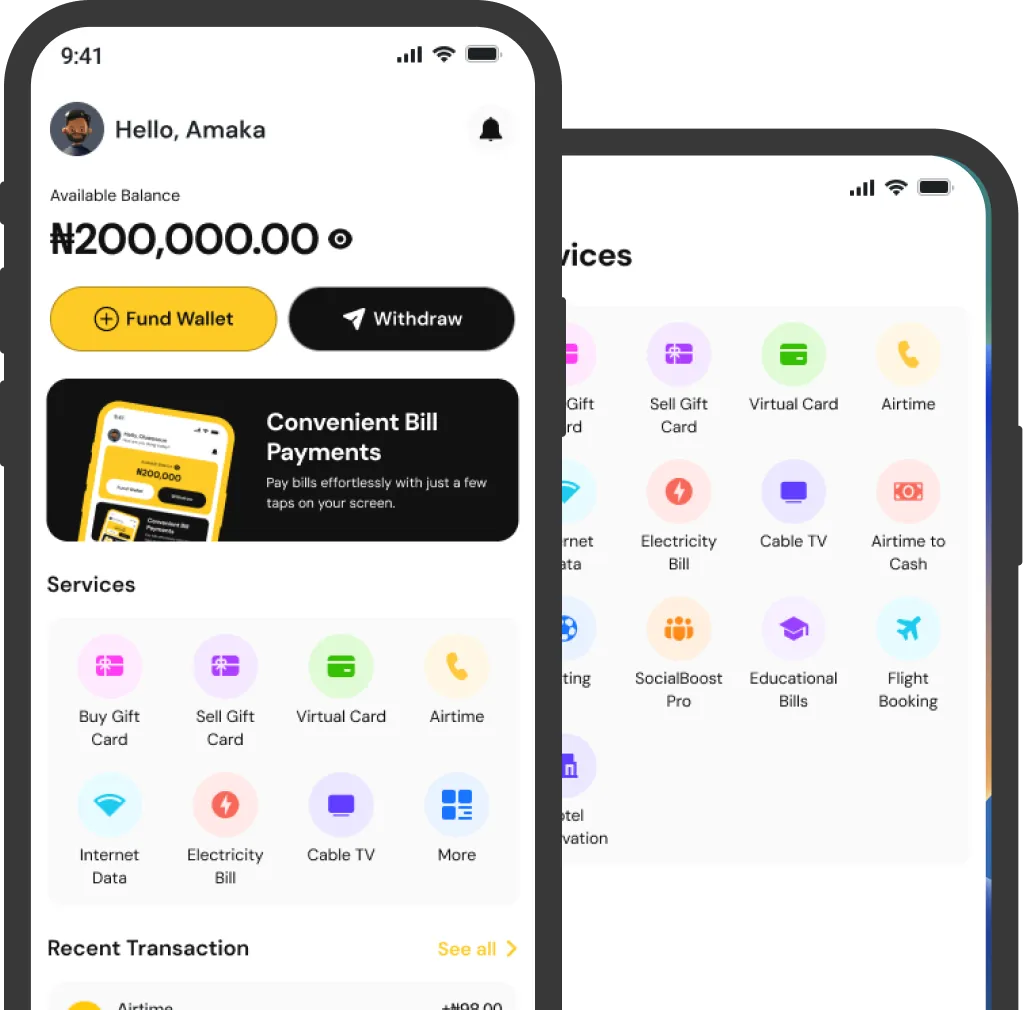
Tools like SnappyPay’s SocialBoost Pro can support this phase by helping creators improve reach performance across platforms. If you need to boost your reach, subscribers, and engagement on YouTube, SnappyPay SocialBoost Pro is the way to go.

Limitations & Edge Cases
While downloading tools can be helpful, they’re not foolproof. There are technical restrictions, platform policies, and quality constraints that may affect what you can actually access or save. Below are some key factors that limit functionality, access, or quality when downloading videos from YouTube.
Login Prompts / Age-Restricted / Private Videos
Not all YouTube videos are publicly accessible in the same way. Some content requires a logged-in account, age verification, channel membership, or specific viewer permissions. Most third-party downloading tools struggle with these categories because they rely on publicly accessible video streams.
If a video is private, members-only, age-restricted, or region-locked, download attempts may fail or return lower-quality versions. These restrictions are part of YouTube’s access control system and are designed to protect creators’ distribution choices.
Legitimate tools should not bypass platform safeguards. If a video requires login approval or explicit permission to view, downloading it without authorization may violate platform terms and the uploader’s rights. When access is restricted, the safest approach is to obtain proper permission or rely on official viewing methods.
Why Tools Break Over Time
YouTube is a constantly evolving platform. Its internal video delivery systems, security layers, and access controls are updated regularly. When these technical changes occur, third-party downloaders may stop functioning until the developer releases an update.
Browser-based tools are even more vulnerable. Changes in extension architecture, such as Chrome’s shift from Manifest V2 to Manifest V3 under guidance from Chrome Developers, have restricted background scripts and tightened permission models. As a result, many downloader extensions were removed from the Chrome Web Store or lost key features.
Enforcement actions also play a role. Browser stores regularly review extensions for policy compliance, and tools that conflict with store guidelines may be disabled or delisted. Unlike desktop applications installed independently, extensions depend entirely on store approval and browser compatibility.
FAQs
1. What is the safest way to download YouTube videos?
The safest option is using YouTube’s official offline download feature (commonly via YouTube Premium) because it’s built into YouTube and doesn’t rely on third-party software. It reduces security risks and is less likely to break due to browser or platform policy changes.
2. Are YouTube downloader extensions safe to use?
Many YouTube downloader extension tools are higher risk because extensions can request broad permissions and are easier for scammers to imitate. They’re also more likely to be removed or limited as Chrome tightens extension rules and phases out older extension standards.
3. Why do YouTube downloader extensions stop working on Chrome?
Chrome has been phasing out older extension architecture (Manifest V2) in favor of Manifest V3 under the Chrome Developers roadmap. The Chrome Web Store has tightened policies to reduce deceptive behavior, which can disable or restrict downloader extensions.
4. Can I download YouTube videos in 4K with a 4K downloader?
A 4k video downloader YouTube tool can only download 4K if the original upload is available in 4K. If the source video is 1080p or lower, the downloader cannot create true 4K resolution. I. It can only save the available format.
5. Is using third-party YouTube downloaders allowed?
Many third-party downloaders may violate YouTube’s terms of service depending on the content and method. A safer approach is downloading only videos you own, have permission to use, or that are explicitly licensed for reuse. Otherwise, use YouTube’s official offline feature.
6. What’s better: a desktop downloader or an online converter site?
Desktop downloaders are usually more reliable and safer than online converter sites because they provide consistent updates and clearer installation sources. Online converters can be convenient but often carry a higher risk of ads, trackers, or misleading download buttons.
7. Can YouTube Premium downloads be used like normal video files?
No. YouTube Premium offline downloads are meant for in-app viewing and are not standard MP4 files you can freely edit. They’re ideal for offline watching, not creator editing workflows.
8. How many devices can I use YouTube Premium offline downloads on?
YouTube states Premium offline features can be used on up to 10 devices at a time per account. If you frequently change devices or collaborate with a team, this limit can affect your workflow planning.
Final Takeaway
Start with official download options whenever possible, as they are the most stable and policy‑compliant. If you need advanced control or batch features, choose a reputable desktop app. Browser extensions should be a last resort, as they are prone to breaking due to platform and browser changes.
Keep it permission‑first and safety‑first. Download only what you’re authorized to use, and avoid tools that request excessive permissions or push bundled installers. Plus, if you need affordable data on any network, use SnappyPay, which is reliable, convenient, and trusted by many Nigerians.
For creators, downloading is only the starting point. The real results come from what you do next: organizing assets, refining edits, adding captions, and executing a focused distribution strategy. This is where SnappyPay’s SocialBoost Pro comes in. To grow strategically on YouTube, from subscribers to engagement, leverage SnappyPay’s SocialBoost Pro today!