You can cancel your Netflix membership anytime online, and you will continue to have access until the end of your billing period.
If you have changed your mind and no longer want Netflix or you want to skip a month, save some money, or try a new service instead, then stick here to learn how to cancel Netflix subscription.
Additionally, you’ll learn how to utilize your subscription optimally using SnappyPay’s virtual card, which is a safe and efficient way to pay for Netflix subscription.
TL;DR
- You can cancel your Netflix subscription anytime and still enjoy access until the end of your billing period.
- To cancel, go to Account → Membership & Billing → Cancel Membership on desktop, mobile, or TV.
- The process is similar across devices, and Netflix will send a confirmation email after cancellation.
- You can manage subscriptions better by using a virtual card to control recurring payments.
- SnappyPay virtual cards let you stop future charges by freezing your card or resume payments anytime.
- This gives you better control over spending, improved security, and flexibility when managing subscriptions.
- You can reactivate Netflix anytime by restoring your payment method or unfreezing your virtual card.
How to Cancel Netflix Membership on Desktop
1. Log in to Your Netflix Account
Open Netflix on your browser and log in to your account.
2. Access the Account Page
Click on your profile picture at the top right corner of the screen, and then click ‘Account’ in the drop-down list.
3. Click on Cancel Membership
On the Membership and Billing tab, you will find the “Cancel Membership” button. Click on it, and Netflix will provide you with step-by-step instructions on how to stop Netflix subscription.
4. Confirm Cancellation
You will be required to check another box to affirm your decision to cancel the subscription. Netflix will also send you an email confirming the cancellation of your subscription and when your current subscription will end.
How to Cancel Netflix Subscription on Mobile Devices
The steps are similar for iOS and Android, but minor differences may exist depending on the app version or device type.
1. How to Cancel Netflix Subscription on iOS
- Open the Netflix App: Open Netflix and sign in to a user’s account with an iPhone or iPad that has this application installed.
- Go to Account Settings: Click on the profile icon at the top right and choose “Account” from the drop-down list. This will redirect you to the Netflix website.
- Cancel Membership: On the account page, go down to Membership & Billing and select the “Cancel Membership” link.
- Confirm Cancellation: At the end of the form or next to the button, there will be a message to confirm the cancellation of the process. When you cancel, Netflix will send an email, confirming the action.
2. How to Cancel Netflix Subscription on Android
- Open the Netflix App: Open Netflix and log in with your account credentials.
- Access Account Settings: Tap the profile icon on the bottom right, then click on Account and you will be taken to the Netflix website.
- Initiate Cancellation: On the Membership & Billing panel, select Cancel Membership.
- Complete the Process: Follow the instructions on a popup that will appear. You will also receive an email from Netflix.
Now that you’ve learnt how to cancel Netflix subscription on your mobile devices, let’s see how it works on TV.
How to Cancel My Netflix Subscription on TV
Canceling your Netflix subscription on TV is easy.
Here’s how:
- Open the Netflix App: Turn on your smart TV and open the Netflix application; log in to your account.
- Navigate to Account Settings: Use the navigation button on your remote to move to the Account Settings menu.
- Access the Account Page: Many TVs will take you to the Netflix website where you can cancel your membership.
- Cancel Membership: To cancel your membership, go to the Membership & Billing tab and click the “Cancel Membership” option.
- Confirm the Cancellation: Ensure you want to cancel the subscription. Netflix will send you an email confirming your cancellation.
How to Manage Netflix Subscription Using SnappyPay Card
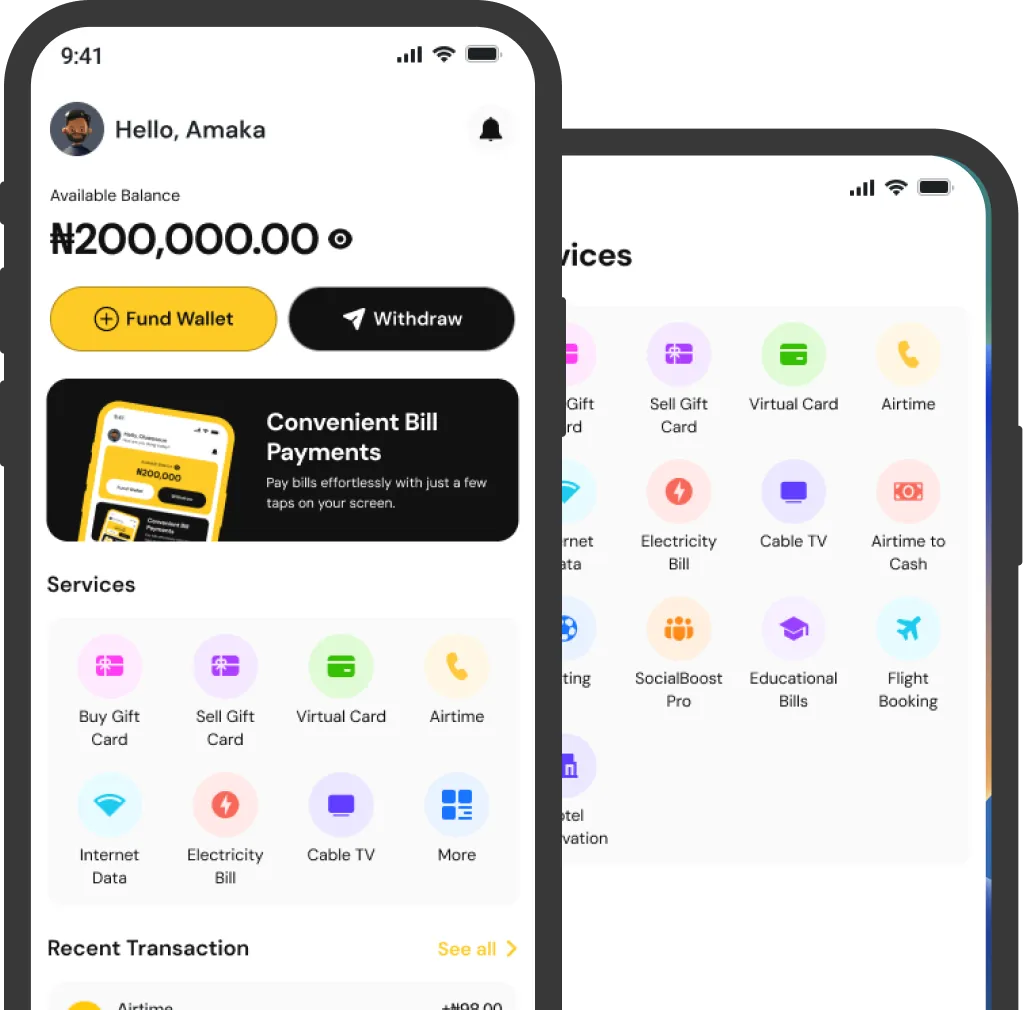
You can use SnappyPay’s virtual card to manage your Netflix subscription seamlessly. Whether you want to reduce your spending, pause, or set your subscription plan, SnappyPay gives you the freedom you desire.
If you want to control your Netflix subscription billing, SnappyPay’s virtual card is a secure option that works for managing recurring payments.

How to Deactivate Netflix Subscription Using SnappyPay Card
- Sign in to Your SnappyPay Account: To use SnappyPay, you need to install the app (Available on Android and iOS) or go to the website, and log into your account.
- Locate Netflix Subscription Payment options: Go to the TV subscription page and locate your Netflix payment information.
- Suspend the Virtual Card: Choose the option to suspend or freeze the virtual card linked to your Netflix account. This will automatically help to stop Netflix from charging you at the next billing cycle.
How to Reactivate Netflix Subscription Using SnappyPay Card

If you have blocked the virtual card earlier, you can unblock or reactivate the card through their SnappyPay app.
- Ensure Funds Are Available: Balance your SnappyPay virtual card with enough money to cater to Netflix’s subscription cost.
- Resubscribe to Netflix: Go to your Netflix account, sign in, select the billing option, and ensure that the reactivated card is the one you are using to pay your subscription.
Not only does using SnappyPay virtual cards protect you from fraud when paying for a Netflix subscription, but it also gives complete control over the amount spent.
How Can I Get a SnappyPay Card for Netflix Subscription?
It is seamless to get a SnappyPay virtual card to manage your Netflix subscription.
Download SnappyPay and pay in seconds.
1. Create a SnappyPay Account: Go to the SnappyPay website or download the SnappyPay app (iOS/Android). Then, register on SnappyPay using your email address or phone number.
2. Verify Your Identity: Follow the instructions provided and fill out your identity questionnaire.
3. Fund Your SnappyPay Wallet: You can then transfer money to your SnappyPay wallet through bank transfer or debit card.
4. Generate a Virtual Card: Open the site and enter the Virtual Cards tab; click on the Create New Virtual Card button.
How Can I link my virtual card to Netflix?
After activating the virtual card, go to Netflix and add the virtual card details (Card number, Expiry date, and CVV) under Netflix’s billing method.
Frequently Asked Questions
1. How do I troubleshoot canceling Netflix subscription issues?
Check your internet connection, update your app or browser, clear cache and cookies, or contact Netflix support if issues persist.
2. What are the alternatives to Netflix?
Hulu, Amazon Prime Video, Disney+, and HBO Max are popular alternatives to Netflix.
3. Can I reactivate my Netflix subscription after canceling it?
Yes, you can reactivate your Netflix subscription after canceling it whenever you wish. Solutions like SnappyPay make it easy to do that.
4. Can I access Netflix after I cancel my subscription?
When you cancel your subscription, you can still use Netflix until your subscription period is complete.
Conclusion
Canceling your Netflix subscription across devices is very easy. More importantly, you need to find a simple way to manage your subscription. SnappyPay virtual cards are the most reliable for managing TV subscriptions.
SnappyPay allows you to pause and resume your Netflix and other services to regulate your spending.
Visit SnappyPay virtual cards page
Explore SnappyPay virtual cards to know more details about Netflix Subscription and manage your payments safely.
Check Now