Staying connected is essential, and MTN makes it effortless for users. Whether you want to help a loved one stay connected, split the cost of a larger data bundle with a friend, or distribute data within a team, MTN offers multiple ways to share data seamlessly.
This article will guide you through the different methods of sharing data on MTN and all you need to know on how to share data on MTN to an MTN line.
TL;DR
- Staying connected is essential in Nigeria for communication, work, education, and everyday digital activities.
- MTN users can share data with friends, family, or teams to help them stay online.
- Data sharing can be done via USSD codes (*321#, *461#), SMS, or the MyMTN app/website.
- MTN SME DataShare allows businesses to distribute bulk data efficiently to multiple users.
- Users can check shared data balances through USSD (*312*4#, *323*4#), SMS, or the MyMTN app.
- Direct transfers to other networks are not supported, limiting cross-network sharing.
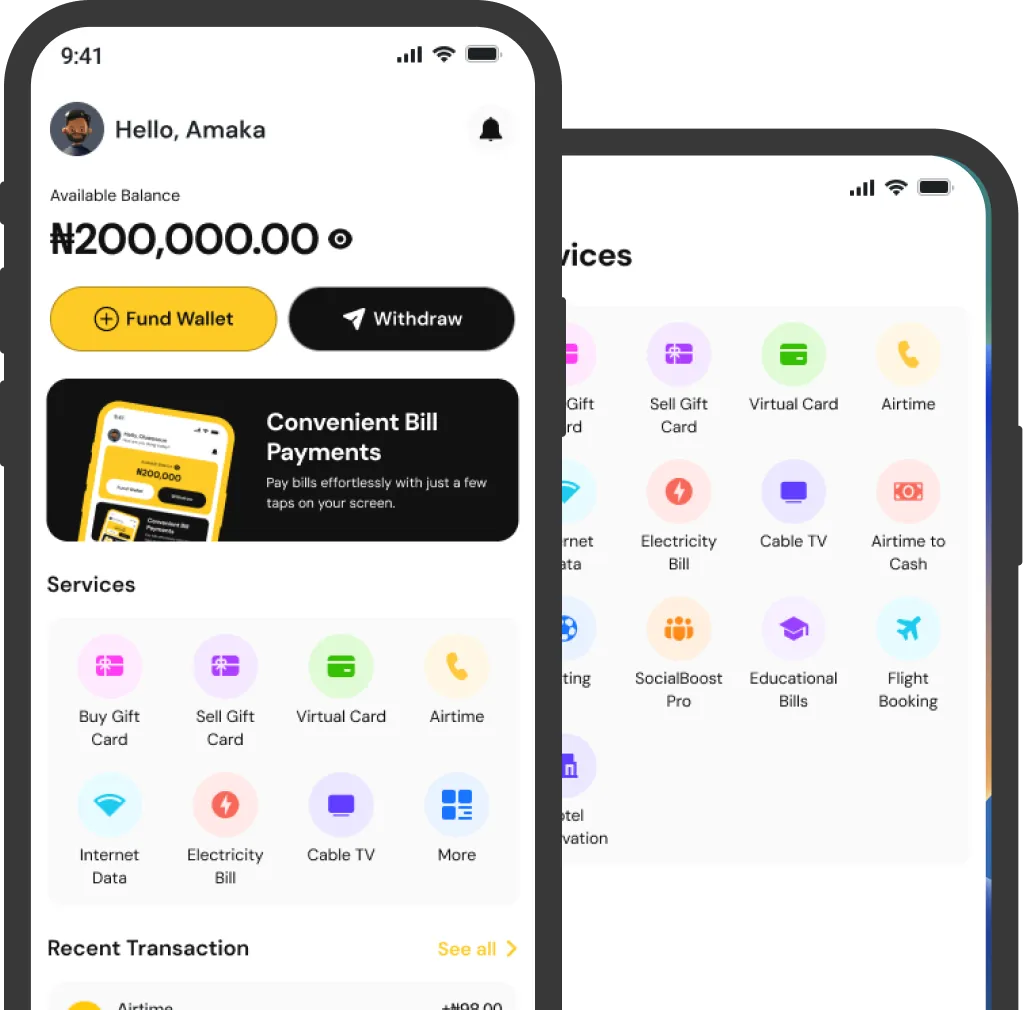
- As an alternative, SnappyPay allows instant data purchase for any network without transfer restrictions.
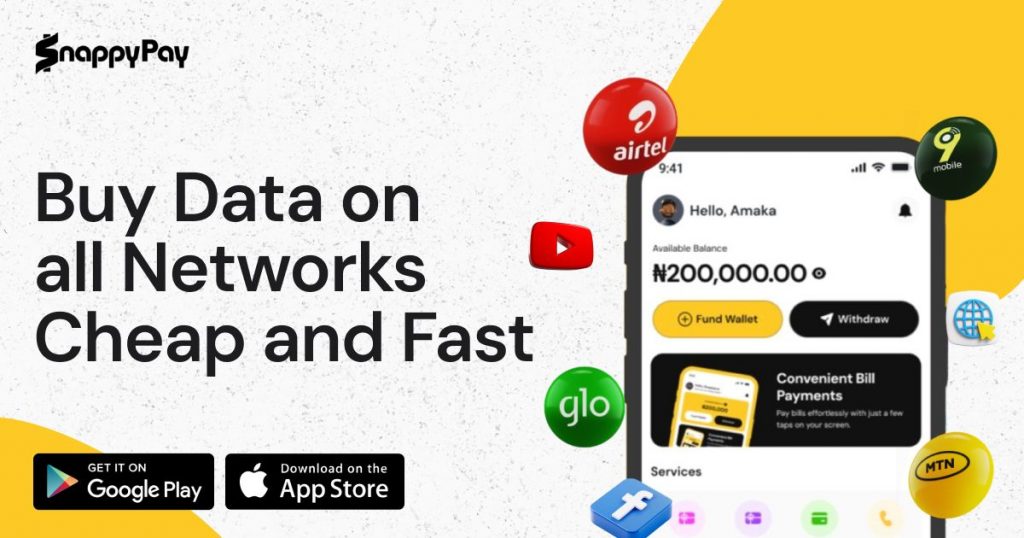
- SnappyPay supports MTN, Airtel, Glo, and 9mobile with fast delivery and secure payments.
- For convenience and reliability, many users prefer platforms like SnappyPay for quick, cross-network data purchases.
What Is Shared Data on MTN?
Shared data on MTN refers to transferring a portion of your internet data bundle to another MTN user. This feature is simple to use and allows users to help others stay connected without stressing over buying separate data plans.
MTN offers multiple ways to share data, including direct transfers via USSD. There’s also SME DataShare, which enables business owners to distribute data among employees or customers. Even new MTN users can share data with others.
How Can I Transfer Data on MTN?
There are several methods to transfer data on MTN conveniently without stress, including the following:
1. How to Share Data on MTN through SMS
To share data on MTN through SMS, you must ensure that you are actively subscribed to a data bundle on your line. Note that you can’t share data that was also shared with you.
To transfer MTN data to someone else, text “Transfer <space> beneficiary’s phone number <space> Data amount” to 312 or 321.
2. How to Share Data on MTN through Code
To share data on MTN using a code, dial *312# or *321# on your phone.
Here’s How to Use the *312# code:
- Dial *312# and follow the prompt
- Enter the recipient’s phone number (ensure it is an MTN number).
- Enter the amount of data to send
- Press Send and wait for confirmation.
Here’s How to Use the *321# code:
- Dial *321#
- Select Gift Data
- Select Transfer from Data balance
- Enter the recipient’s phone number
- Select the amount of data to send
- Press Send and wait for confirmation.
3. How to Share Data on MTN through MyMTN App or Website
- Open the MyMTN App or visit the MTN website.
- Log in with your registered MTN number.
- Navigate to the data-sharing option, enter the recipient’s number, follow the prompt, and select the data amount.
- Confirm the transaction.
4. How to Buy MTN Data for Loved Ones through SnappyPay
- Go to the SnappyPay Buy Data page.
- Select your preferred network provider.
- Enter the recipient’s phone number.
- Select the data bundle and confirm payment.
- The recipient will receive the data instantly.
Do more in one place: pay bills, buy data, get virtual cards, and more.
SnappyPay combines everyday essentials and helpful extras — top up airtime, renew TV, pay electricity, fund wallets, and handle more without jumping between apps.
How to Share SME Data on MTN
MTN SME DataShare is a prepaid service designed for business owners to buy data in bulk, share with staff, and manage usage efficiently. It is designed for business owners to distribute data among employees or customers.
Here’s how to share SME data:
1. You can share your SME data using the MyMTN app.
2. You can also share data with any beneficiary by sending “SMEA [Phone Number] [Data Amount] [Pin]” to 131.
3. You can share via USSD following the steps below:
- *461# and follow the prompt
- Select “share data to others”
- Select the data of your choice
- Enter the recipient’s number
- Click send and confirm the transaction.
4. You can use SnappyPay to manage data transfers in bulk. Simply fund your wallet. Then, you can input the recipient’s phone number and choose the data plan you want for them.
How to Check Shared Data on MTN
To check shared data on MTN, use the myMTN app, USSD, or SMS.
MyMTN App: Log in, navigate to See More > Data, then choose a date to view usage.
USSD Codes:
SMS:
- Text “2” to 312 – Data bundle balance
- Text “2” to 323 – Gifted data balance
How to Share Data on MTN to Other Networks
Currently, MTN does not support direct data transfers to other networks. However, third-party platforms like SnappyPay allow users to buy data for friends and loved ones, regardless of their network provider.
Common MTN Data Transfer Issues and Solutions
Even though sending data on MTN is usually smooth, you might run into a few hiccups along the way. Below are some common issues and what you can do about them:
1. Service not going through
Sometimes the transfer request may fail because of a temporary network glitch. If this happens, simply wait a few minutes and try again. You can also switch methods—use SMS if USSD isn’t responding, or use SnappyPay for a faster, more reliable process.
2. Not enough data to share
If your data balance is too low, MTN won’t let the transfer go through. The quick fix is to top up your data bundle first, then retry the transfer.
3. Wrong transfer size
MTN only allows certain bundle sizes (like 100MB, 200MB, 500MB, or 1GB) for sharing. If you try to send an unsupported size, the request will be declined. Stick to the approved amounts to avoid this.
4. The recipient is not qualified to receive data
If the person you’re trying to send data to isn’t on MTN or their line is inactive, the transfer will fail. Make sure the recipient’s number is valid and active before you proceed.
5. Transfer keeps failing
When repeated attempts don’t go through, double-check that the number you entered is correct, confirm you haven’t exceeded your daily transfer limit, and ensure you still have enough data left.
Frequently Asked Questions
1. Can I share bonus data on MTN?
No, MTN does not allow the sharing of bonus data. You can only transfer purchased data bundles.
2. Is there a limit to how much data I can share on MTN?
Yes, MTN has daily limits on data transfers. The limit is typically set at 5GB, meaning you can only transfer a maximum of 5GB of data to other MTN users within 24 hours. However, you can share up to 10GB of MTN SME data.
3. How much does it cost to share data on MTN?
MTN does not charge extra fees for data transfers. However, ensure you have sufficient data balance before initiating a transfer.
4. Can I share data if I am on an MTN data plan?
Yes, but only certain data plans support sharing. You can dial *131# for more details.
5. How long does it take for the recipient to receive shared data?
Data transfers are usually instant, but in rare cases, delays may occur due to network congestion. If delays persist, check your balance or try again later. You can also use SnappyPay for fast delivery.
Conclusion
MTN offers multiple easy methods to share data with friends, family, or employees, ensuring seamless connectivity. Whether through SMS, USSD codes, or the MyMTN App, transferring data has never been easier. You can also trust SnappyPay to buy data for friends and family across all network providers.
Have you tried any of these methods? Share your experience in the comments below.
Stay Connected with Ease
Leverage SnappyPay’s revolutionary digital payments platform for all your data transactions and enjoy uninterrupted connectivity for your favorite online activities.
Try SnappyPay Today![How to Transfer Data on Airtel in 2026 [All Methods]](https://cms.snappypay.ng/wp-content/uploads/2025/02/How-to-Transfer-Data-on-Airtel.jpeg)
![How to Share Data on Glo in 2026 [All Methods]](https://cms.snappypay.ng/wp-content/uploads/2025/02/How-to-Share-Data-on-Glo.png)
![How to Borrow Data on MTN [Complete 2026 Guide]](https://cms.snappypay.ng/wp-content/uploads/2025/03/How-to-Borrow-Data-on-MTN.png)